
How to use the browser-based CDE (Common Data Environment) and IFC/BIM viewer. Sign in and start for free. Paid features are marked Paid.
| Feature | Free | Paid (¥1,000/month incl. tax) |
|---|---|---|
| Cloud storage | 1GB | 60GB (+30GB for ¥300) |
| 3D viewer (IFC), tree & properties | ✓ | ✓ |
| Revit (RVT), Navisworks etc. via cloud conversion | ✓ | ✓ |
| Floor/type filters, measuring, section cut | ✓ | ✓ |
| Volume & weight of selected elements | ✓ | ✓ |
| Auto schedule (schedule + 3D replay) | ✓ | ✓ |
| IFC schema check, fix suggestions, CSV export | ✓ | ✓ |
| Projects & folders, PDF/Word/Excel preview | ✓ | ✓ |
| Issues, team schedule, trash | ✓ | ✓ |
| Clash detection | — | ✓ |
| Quantity take-off (per floor, CSV, REAL4) | — | ✓ |
| Model overlay | — | ✓ |
| Point-cloud loading & overlay | — | ✓ |
| Adding organization / project members (sharing) | — | ✓ |
Organization accounts are currently a free beta (1GB). Invite staff and external partners and share per project (see Organization accounts). For pricing details see the Commercial Transactions Act notice.
On the home page, choose “Personal” and sign in with Google or email.
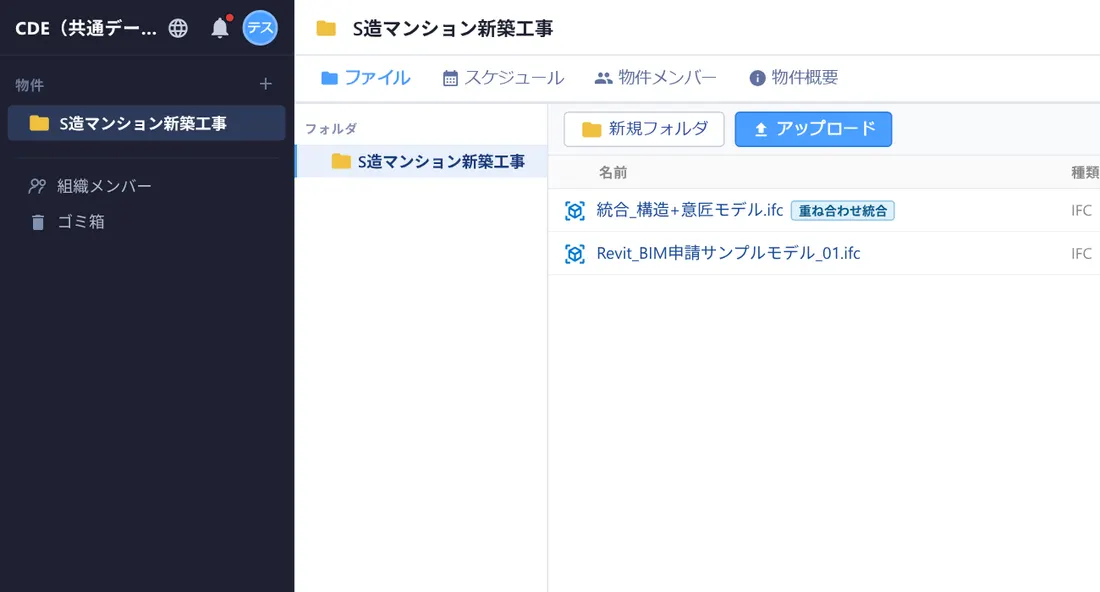
Use “Projects +” in the left menu. You can also record a job code, address, client and more.
Click “Upload” or drag and drop. IFC, RVT, PDF, Word, Excel and images are supported.
IFC and RVT open in 3D; PDF, Excel and others open as a preview.
To just look at a local IFC, you can use “Open file” without creating a project.
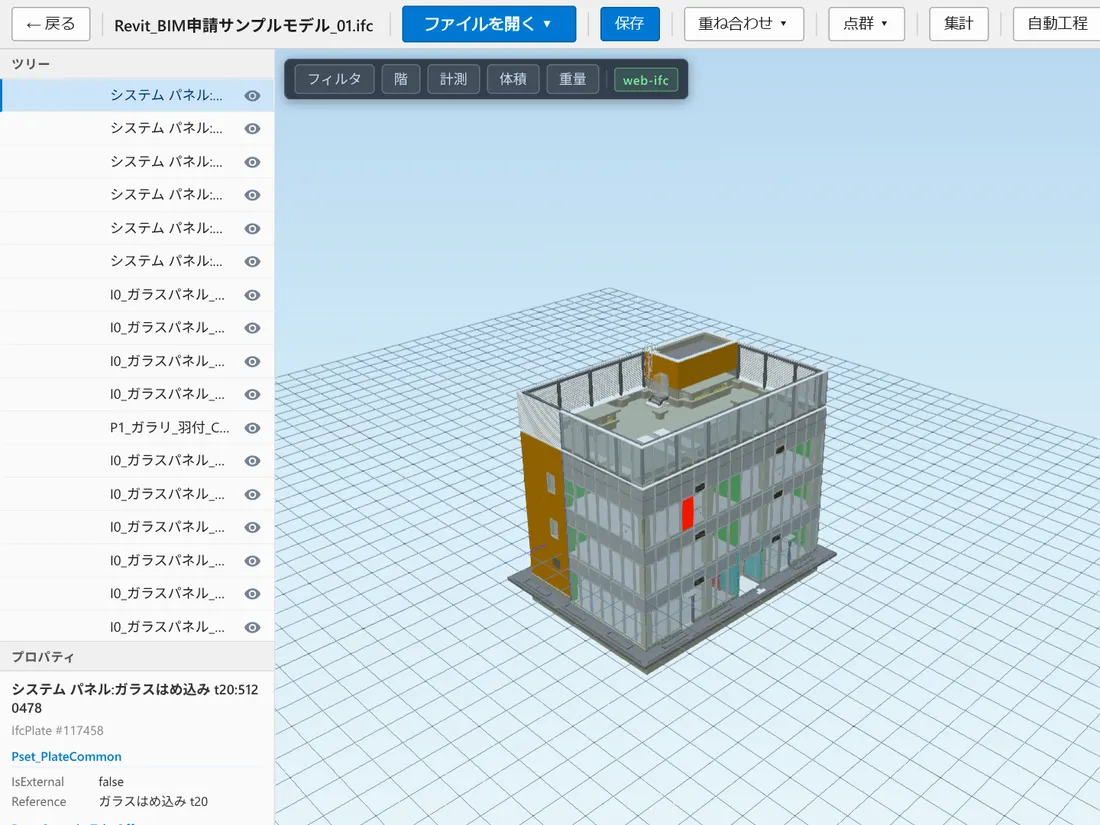
| Format | Processing | Notes |
|---|---|---|
| IFC (IFC2x3 / IFC4) | In your browser | Nothing is sent to a server. IFC files that store Japanese text as raw Shift_JIS (some MEP CAD tools) are converted automatically |
| RVT, NWD/NWC, DWG, FBX, etc. | Cloud conversion | View without Revit or Navisworks (the first time takes a few minutes) |
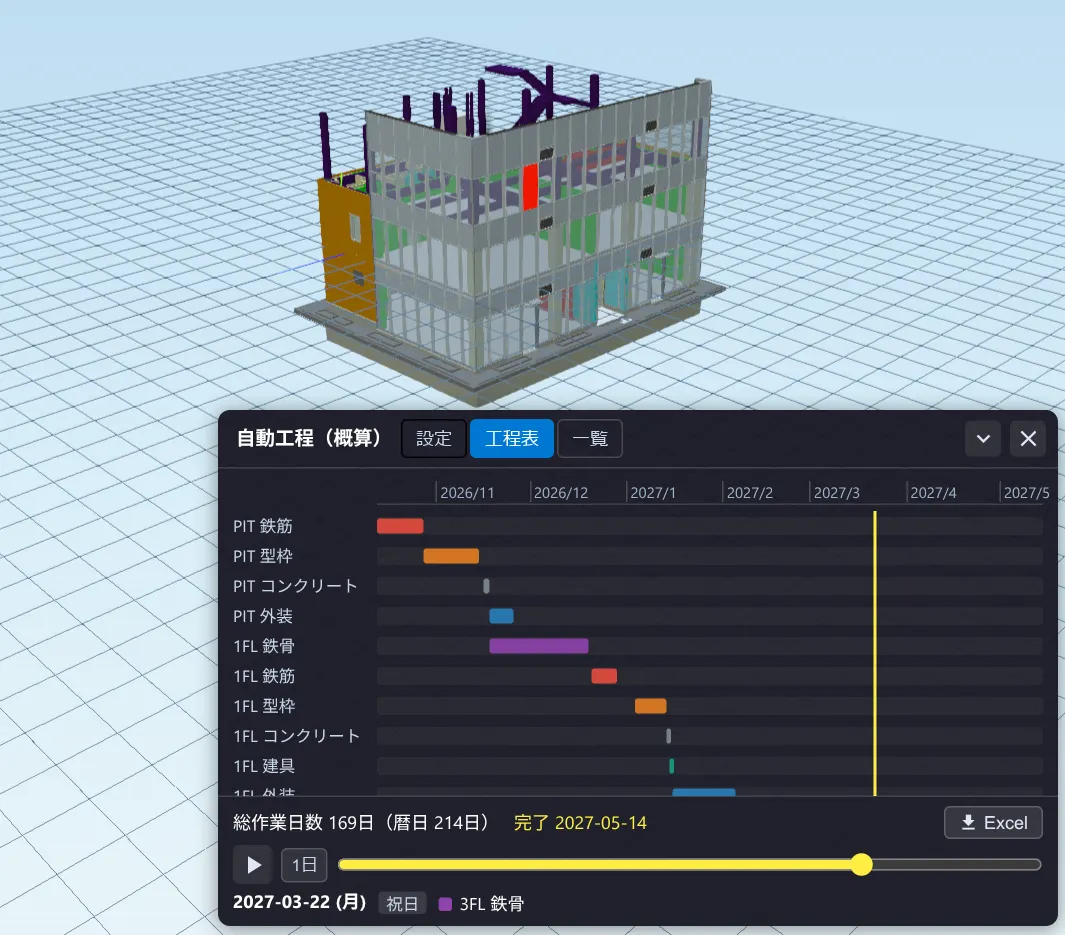
The schedule is an estimate based on quantities. Adjust productivity and crews to match your plan.
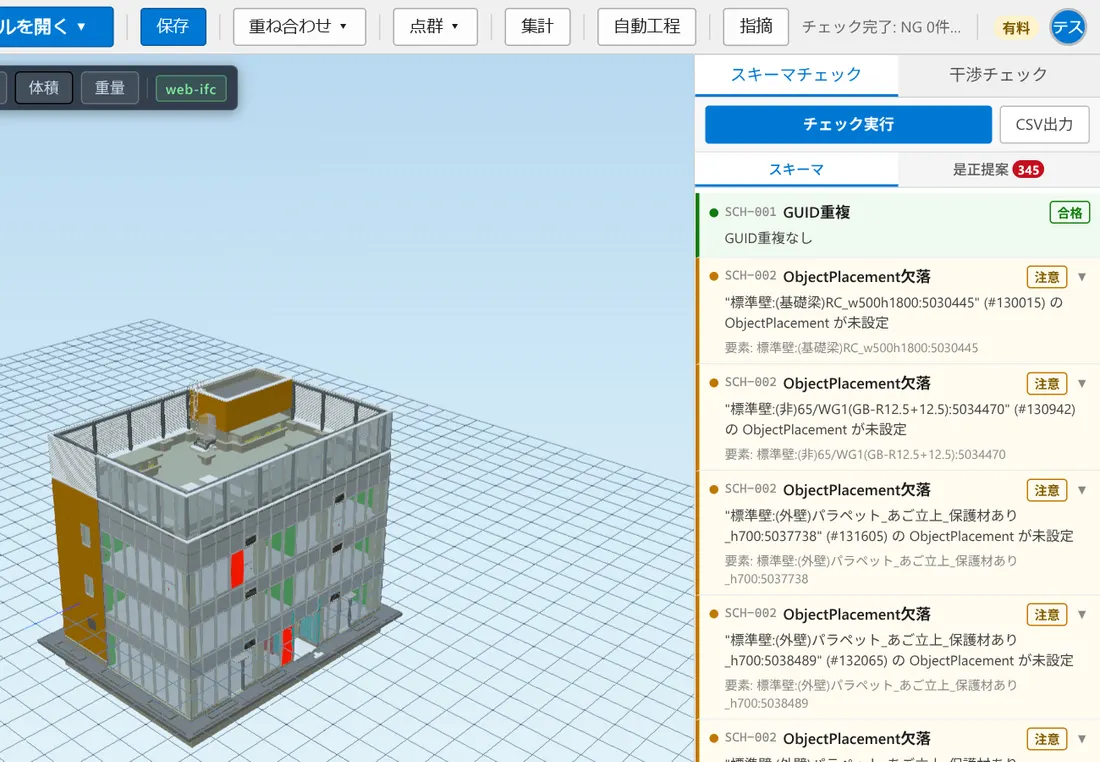
| Feature | What it does | Plan |
|---|---|---|
| Schema check | Finds IFC issues such as duplicate GUIDs, missing placements, unnamed elements or missing materials | Free |
| Fix suggestions & CSV | Suggests how to fix each issue; export results to CSV | Free |
| Clash detection | Detects overlapping elements (e.g. pipes and beams) | Paid |
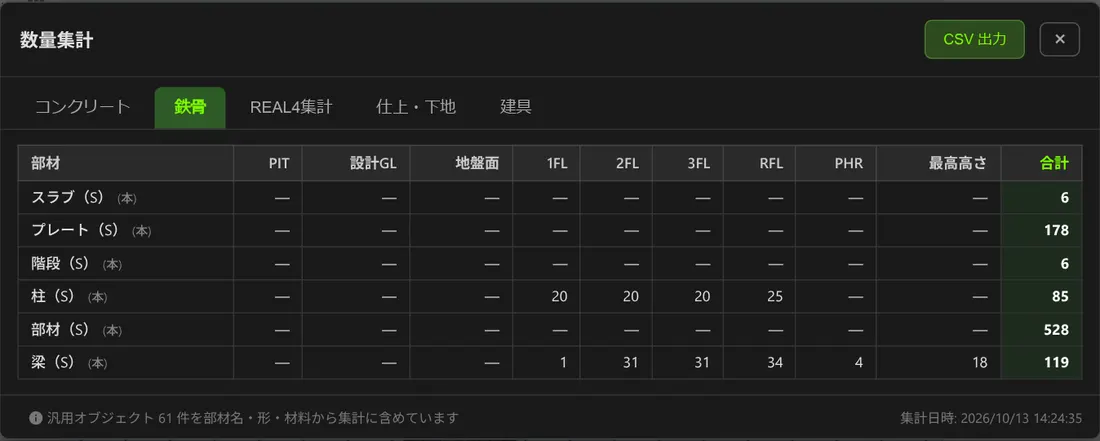
| Feature | What it does | Plan |
|---|---|---|
| Volume & weight | Totals the volume and weight of the elements you click | Free |
| Quantity take-off | Concrete, steel, finishes and doors/windows per floor, with CSV export | Paid |
| REAL4 take-off | Steel totals in REAL4 categories | Paid |
| Point-cloud format | Maximum size |
|---|---|
| LAS, PLY | Up to 1GB |
| XYZ, PTS, TXT, ASC (text) | Up to 400MB |
Display is thinned automatically to 3 million points. For larger files, thin them with a tool such as CloudCompare or convert them to LAS.
| File | How it opens |
|---|---|
| IFC, RVT, etc. | Click to view in 3D |
| PDF, images | Shown in the app |
| Word (.docx), Excel (.xlsx / .xls) | Rendered in your browser (works even where external viewers are blocked) |
| PowerPoint, legacy .doc | Microsoft’s online viewer |
Adding members is a paid feature. Receiving a share is free.
Your organization owns the projects and data, and can invite staff and external partners. Data stays with the organization even when people change roles.
On the home page choose “Organization” → “Create an organization (free)”. Register the company name, organization ID and an admin, and start right away.
Send invitations from “Organization admin”. Invitees join from the email link by setting a password or using Google.
At the “Organization” entrance, enter the organization ID, email and password.
| Organization role | Access |
|---|---|
| Owner / Admin | Invite staff, change roles, manage all projects |
| Member | Only the projects they join |
| Member (external) | Partner companies, etc. Marked “External” when invited — they cannot see the staff list. They can be editors or viewers, but not project managers |
| Project role | Access |
|---|---|
| Project manager | Add people, change roles, edit files |
| Editor | Add and edit files, folders and events |
| Viewer | View only |
Q. Can I open IFC and Revit (RVT) files for free?
A. Yes. IFC opens in your browser and RVT/NWD etc. via cloud conversion, all on the free plan.
Q. Do I need to install anything?
A. No. It works in Chrome, Edge, Safari and other browsers.
Q. Japanese text in my IFC looks garbled
A. IFC files that store text as raw Shift_JIS or UTF-8 (not per the standard) are converted automatically when opened. If text is still garbled, let us know which software exported the file.
Q. Which languages are supported?
A. Japanese, English, Simplified Chinese, Korean and Spanish.
Q. Is my data safe?
A. IFC checks and take-off run in your browser. Only files you choose to save to the cloud are stored (on Firebase) over encrypted connections. See the Privacy Policy.
Nothing to install — try it now in your browser
Open the free CDE / IFC viewer →